
New Shopify Flow Trigger: Product Updated
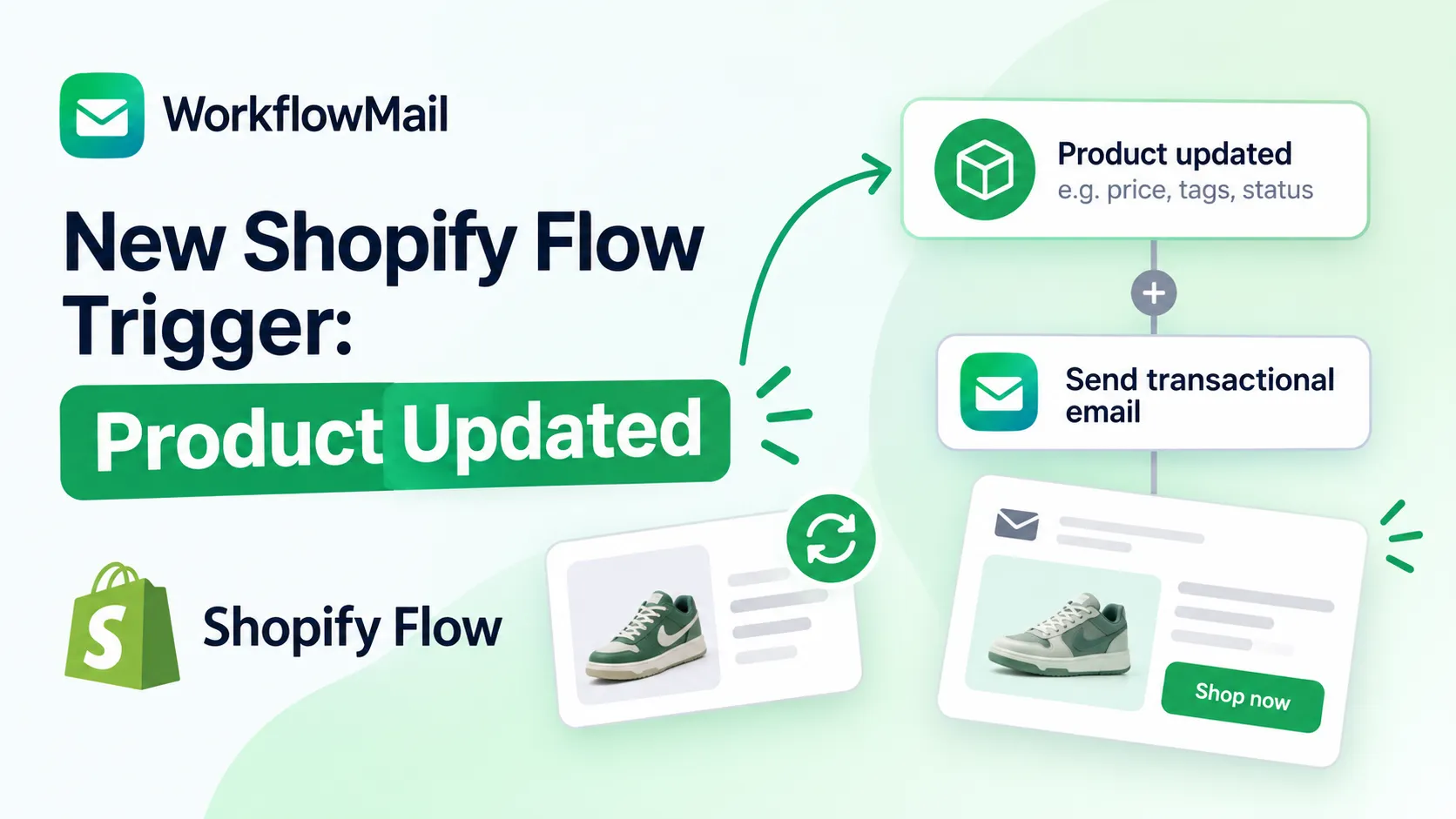
On October 28, 2026, Shopify introduced a long-awaited trigger in Shopify Flow: Product updated. You can now build workflows that respond when a product or product variant changes in your store – and react only to the fields that actually matter to you.
If you've ever wanted to notify your team, update a metafield, or send a customer email the moment a price, tag, or status changes – this trigger is for you. And because WorkflowMail adds a real "Send transactional email" action to Shopify Flow, every one of these workflows can end with a branded email in the right inbox.
What's new?
The Product updated trigger starts a workflow when one or more fields on a product or its variants change. Instead of firing on every tiny edit, you choose which fields matter – up to five – and the workflow runs only when one of those selected fields changes. Changes to fields you didn't select are ignored, so you avoid noise and unnecessary runs.
Shopify's example: you can automatically set a metafield value that is dependent on other fields in the product. But the trigger goes far beyond that – any product or variant field you care about can drive an automation, and from there a WorkflowMail email.
To start a workflow when a product is first added, use the Product created trigger. To react to inventory quantity changes specifically, use the Product variant inventory quantity changed trigger.
Full reference: Product updated trigger documentation.
Fields you can monitor
You must select at least one field to monitor, and you can select up to five. When any one of the selected fields changes, the workflow runs. The fields are grouped by type:
| Field type | Fields |
|---|---|
| Product | category, combinedListingRole, descriptionHtml, giftCardTemplateSuffix, handle, metafield.value, productType, requiresSellingPlan, status, tags, templateSuffix, title, vendor |
| Media | media |
| Options | options, options.name, options.position, options.optionValues, options.linkedMetafield, and more |
| Variants | variants.barcode, variants.compareAtPrice, variants.inventoryPolicy, variants.media, variants.metafield.value, variants.position, variants.price, variants.requiresComponents, variants.showUnitPrice, variants.taxable, variants.title |
| Bundles | bundleComponents, bundleComponents.quantity, bundleComponents.quantityOption |
| Combined listings | combinedListing, combinedListing.combinedListingChildren, and related fields |
To monitor a product or variant metafield, select metafield.value / variants.metafield.value and then pick the metafield definition (or enter a namespace to monitor every metafield in it). Each metafield definition or namespace counts as one of your five fields.
Things to know before you build
- Only current values are available. The trigger provides the product's current values – you cannot reference the value before the change (e.g., the old price).
- Mixed field types can be empty. If you monitor both
tagsandvariants.price, the Product Variant field is empty when only tags change. Add a condition checking the field has a value before using it in an action. - Adding a product can also trigger it. Setting Product fields like
titleortagswhen a product is added does not start the workflow. But variants, options, media, bundle components and combined listing products added with a product count as changes – so monitoringvariants.priceruns when a product is added (every product has at least one variant). - Test by editing a product. Turn the workflow on, then change one of the monitored fields in the Shopify admin.
What you can do with it (actions)
Because this trigger provides a product, you can use any action that requires a product – including tagging, collections, publishing, metafields, and redirects. Combined with WorkflowMail, the natural last step of most of these workflows is a transactional email.
Available product actions include: Add/Remove product tags, Add/Remove product from collections, Create/Delete redirect URLs, Publish/Unpublish product, Update/Remove product metafield.
Example workflows powered by WorkflowMail
Below are practical workflows you can build today. In each one, the trigger is Product updated, the logic is Shopify Flow, and the delivery is WorkflowMail – sending a branded, personalized email to your team or your customers.
1. Price change alert to your pricing team
Monitor: variants.price
When a variant's price changes, notify the people responsible for pricing so they can double-check the change, update spreadsheets, or react to competitor moves.
When a product variant's price is updated → Send email with WorkflowMail to pricing@yourstore.com with product title, variant title, new price, and a link to the product in Shopify admin
Why WorkflowMail: the email can include the product title, variant, and new price pulled straight from Shopify data, and land in your team's inbox under your own domain.
2. "New arrival" announcement when a tag is added
Monitor: tags
When a product gets tagged new-arrival, announce it to your VIP customers or your marketing list.
When a product is tagged "new-arrival" → Send email with WorkflowMail to your VIP customer segment with product name, image, price, and a "Shop now" link
Add a condition checking the tag is present before sending, so the email only fires for genuine new arrivals and not for every tag edit.
3. Metafield-driven internal notification
Monitor: metafield.value (e.g., a "supplier_status" or "launch_date" metafield)
When a custom metafield changes – say a supplier marks an item as discontinued, or a launch date is set – notify the right team instantly.
When a product's "supplier_status" metafield changes → Send email with WorkflowMail to merchandising@yourstore.com with product title, new status, and a link to the product
This is the "set a metafield dependent on other fields" idea from Shopify's changelog, flipped into a notification: react to metafield changes and keep humans in the loop.
4. Product goes live → marketing handoff
Monitor: status
When a product's status changes to Active, tell marketing it's time to promote it – or trigger a follow-up chain.
When a product's status changes to Active → Send email with WorkflowMail to marketing@yourstore.com with product details and a reminder to schedule social posts and ads
5. Variant-level changes (barcode, taxable, compare-at price)
Monitor: variants.compareAtPrice, variants.barcode, or variants.taxable
React to operational edits that affect fulfillment, accounting, or promotions.
When a variant's compare-at price changes → Send email with WorkflowMail to the promotions team with product, variant, old-vs-new compare-at price context, and new sale price
Remember the trigger only exposes current values, so phrase the email around the new state ("new compare-at price is X") rather than a diff.
6. Media updated → content review
Monitor: media
When product images or media change, route the product to your content or QA team for review before it goes live.
When a product's media is updated → Send email with WorkflowMail to content@yourstore.com with product title and a link to review the new media
7. Combined listing child changed → parent notification
Monitor: combinedListing.combinedListingChildren
For stores using combined listings, notify your catalog team when a child product changes so the parent listing stays consistent.
When a combined listing child product changes → Send email with WorkflowMail to catalog@yourstore.com with the parent and child product details
Tips for building these well
- Keep the monitored field list tight. You get up to five – spend them on fields that genuinely change business outcomes.
- Guard against empty fields. When monitoring mixed types, add a condition that the relevant field has a value before referencing Product Variant / Option / Media in the email.
- Phrase emails around the new state. Previous values aren't available, so write copy like "Price is now $X" rather than "Price changed from $Y to $X".
- Avoid self-trigger loops. If your workflow updates a product metafield in response to a product update, make sure that metafield isn't one of the monitored fields – otherwise you'll create an infinite loop.
- Test on a draft product first. Turn the workflow on, edit a draft product's monitored field, and confirm the email arrives before relying on it in production.
Install WorkflowMail and start automating
WorkflowMail adds a "Send transactional email" action to Shopify Flow, so any trigger – including the new Product updated trigger – can end with a branded, personalized email. It supports SMTP, Gmail, and Microsoft 365 Graph API, ships with ready-made templates, and includes 500 free lifetime Flow actions to try.
Free plan available · 500 free lifetime Flow actions to try · Built for Shopify
Browse ready-made starting points in the WorkflowMail templates in the Flow editor, and see our guide on building Flow workflows with Sidekick to generate these automations from a prompt.
Happy automating! 🚀