Creating Shopify Flow Workflows with Sidekick (and Sending Emails with WorkflowMail)
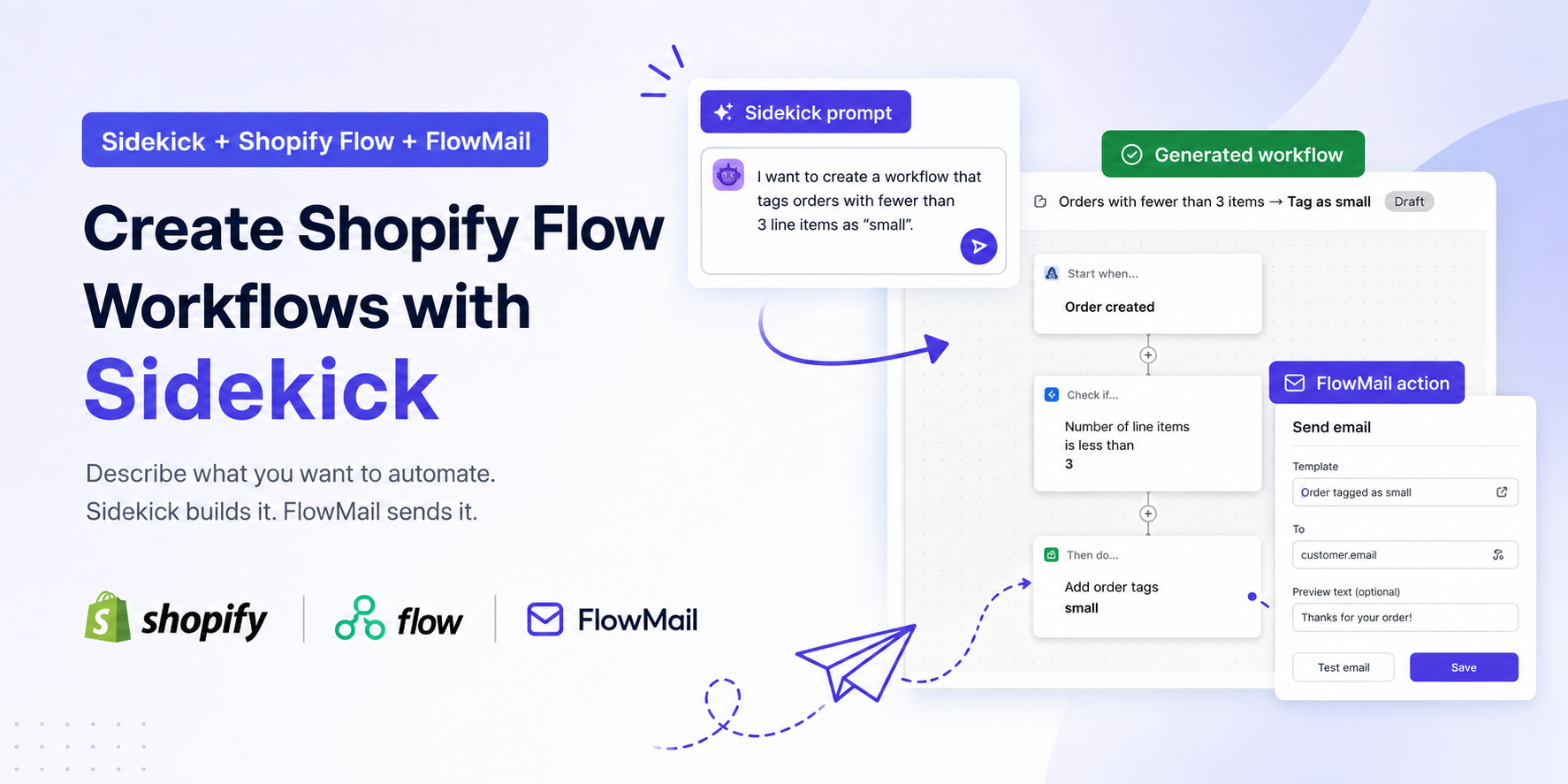
Shopify automation has traditionally required merchants to learn triggers, conditions, actions, and the overall structure of Shopify Flow workflows. While Flow is incredibly powerful, building automations manually can be intimidating for store owners who just want to automate a business process quickly.
That's changing thanks to Shopify Sidekick.
Today, merchants can describe an automation and have Sidekick generate a Shopify Flow workflow automatically. Instead of spending time navigating through triggers and conditions, you can simply explain what you want to happen and let Sidekick build the first version for you. Shopify recently added support for generating Shopify Flow workflows directly from Sidekick, making automation more accessible than ever.
What is Sidekick-powered workflow generation?
When Shopify Flow is open in your Shopify admin, Sidekick can create or modify workflows based on natural language instructions.
For example, you can ask:
Create a workflow that tags orders with fewer than 3 line items as "small".
Sidekick will generate the workflow, including the trigger, conditions, and actions, allowing you to review and adjust it before activation.
According to Shopify, this works particularly well for:
- Customer tagging
- Order tagging
- Email notifications
- Inventory alerts
- Scheduled automations
More advanced workflows may still require manual refinement after generation.
How to Create a Workflow with Sidekick

Getting started is straightforward:
- Install and open Shopify Flow.
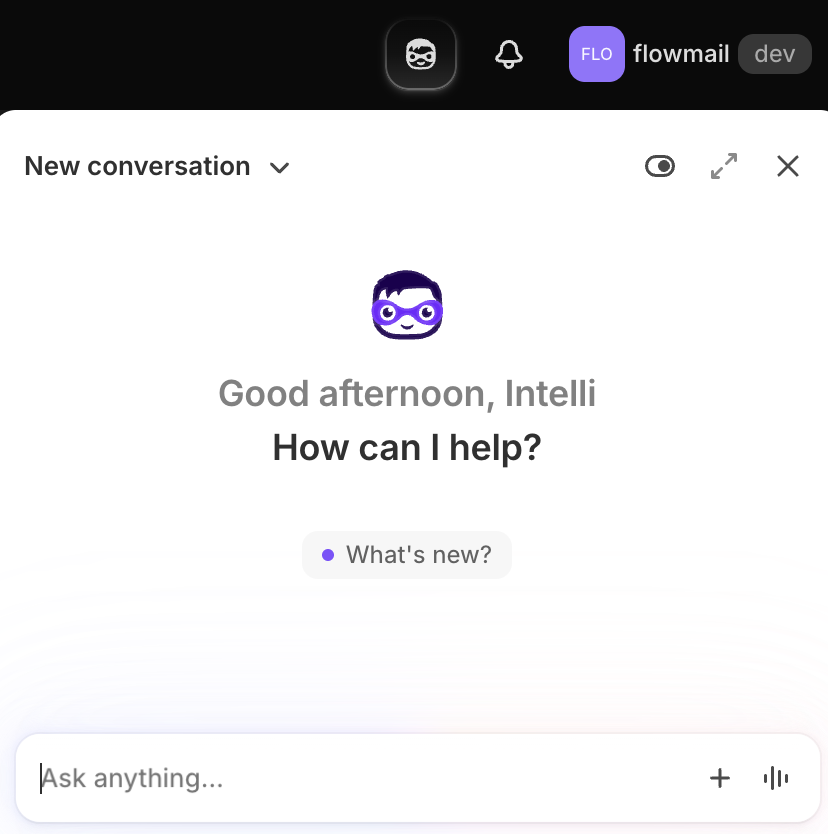
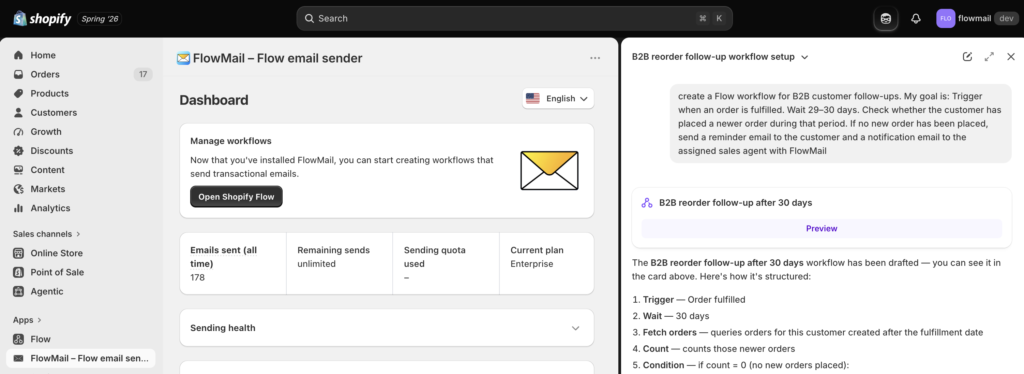
- Open Sidekick using "mask" icon on the top right of your screen
- Describe the automation you want in plain language.
- Review the generated workflow.
- Test the workflow.
- Activate it when you're satisfied with the results.
A few important details:
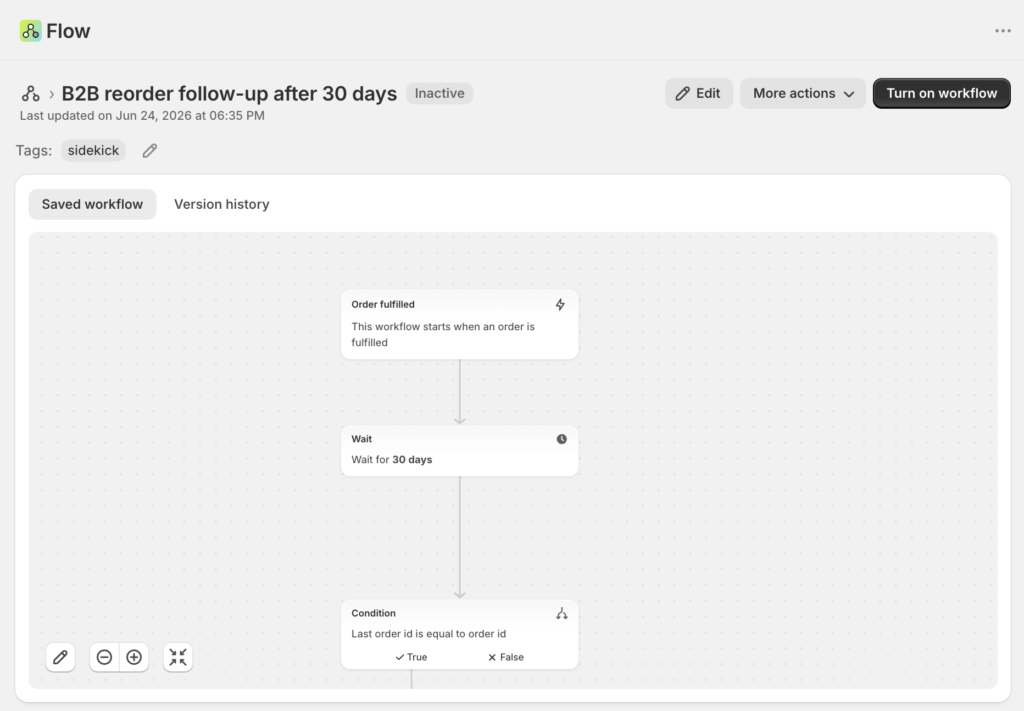
- Generated workflows are inactive by default and must be manually enabled.
- Shopify automatically tags generated workflows with the
sidekicktag.
The secret to better results: be specific
Like any AI tool, Sidekick performs better when you provide clear instructions.
Instead of: "Send VIP emails" try "When a customer's lifetime spend exceeds $1,000, send them a VIP welcome email with WorkflowMail and add the VIP tag"
- The trigger
- The conditions
- The desired actions
Shopify recommends clearly describing the business event, the conditions, and the outcome you want to achieve.
Where email automation fits in
Many Shopify Flow workflows ultimately need to communicate with customers.
Examples include:
- Welcome emails
- VIP notifications
- Loyalty rewards
- Back-in-stock alerts
- Low inventory notifications
- Internal team alerts
- Follow-up campaigns
This is where Shopify Flow becomes even more powerful when combined with an email automation app.
Using WorkflowMail (formerly FlowMail) with Shopify Flow
WorkflowMail is designed specifically for merchants who want to send emails directly from Shopify Flow workflows.
Instead of relying on complicated external automation platforms, you can add a WorkflowMail action to your workflow and send emails whenever specific business events occur.
Some examples include:
- VIP Customer Rewards – prompt Sidekick:
Create a workflow that identifies customers whose lifetime spend exceeds $1,000 and sends them a VIP welcome email with WorkflowMail
- Low Inventory Alerts – prompt Sidekick:
Notify our operations team when any product variant inventory falls below 5 units.
Use WorkflowMail to send a detailed inventory alert directly to your team.
High-Value Order Notifications – prompt Sidekick:
Send an internal notification whenever an order exceeds $500.
WorkflowMail can send a customized email containing order details, customer information, and links back to Shopify Admin.
- Customer Milestone Emails: prompt Sidekick:
Send a thank you email with WorkflowMail after a customer places their tenth order.
WorkflowMail can personalize the message using Shopify customer and order data available in the workflow.
Workflow Ideas You Can Build Today
If you're looking for inspiration, try asking Sidekick to create:
- Send a welcome email to first-time customers;
- Notify staff when a product sells out;
- Alert the warehouse when a high-priority order is placed;
- Tag customers who haven't ordered in 180 days;
- Reward repeat customers after their fifth purchase;
- Notify suppliers when inventory reaches a reorder threshold;
- Send anniversary emails to customers one year after their first order;
- Alert support staff when a high-risk order is detected.
Most of these can be generated in seconds and then enhanced with WorkflowMail email actions.
Always Review Before Activating
AI-generated workflows can save a significant amount of time, but they shouldn't be treated as production-ready without testing.
Shopify recommends reviewing generated conditions, verifying comparison operators, testing with sample data, and ensuring business-specific logic hasn't been omitted before activating a workflow.
A quick review can prevent unexpected automations later.
Final Thoughts
Shopify Sidekick has dramatically lowered the barrier to entry for Shopify Flow automation. Merchants no longer need to understand every trigger and action before getting started—they can simply describe what they want to automate.
For workflows that involve sending emails, WorkflowMail extends those automations by allowing Shopify Flow to deliver personalized messages to customers, staff, suppliers, or partners.
The combination of Sidekick for workflow creation and WorkflowMail for email delivery makes it possible to build sophisticated Shopify automations in minutes rather than hours.
Ready to try it? Install WorkflowMail and start turning your Sidekick-generated workflows into real customer communications.