
What Is Shopify Flow? A Practical Guide to Store Automation
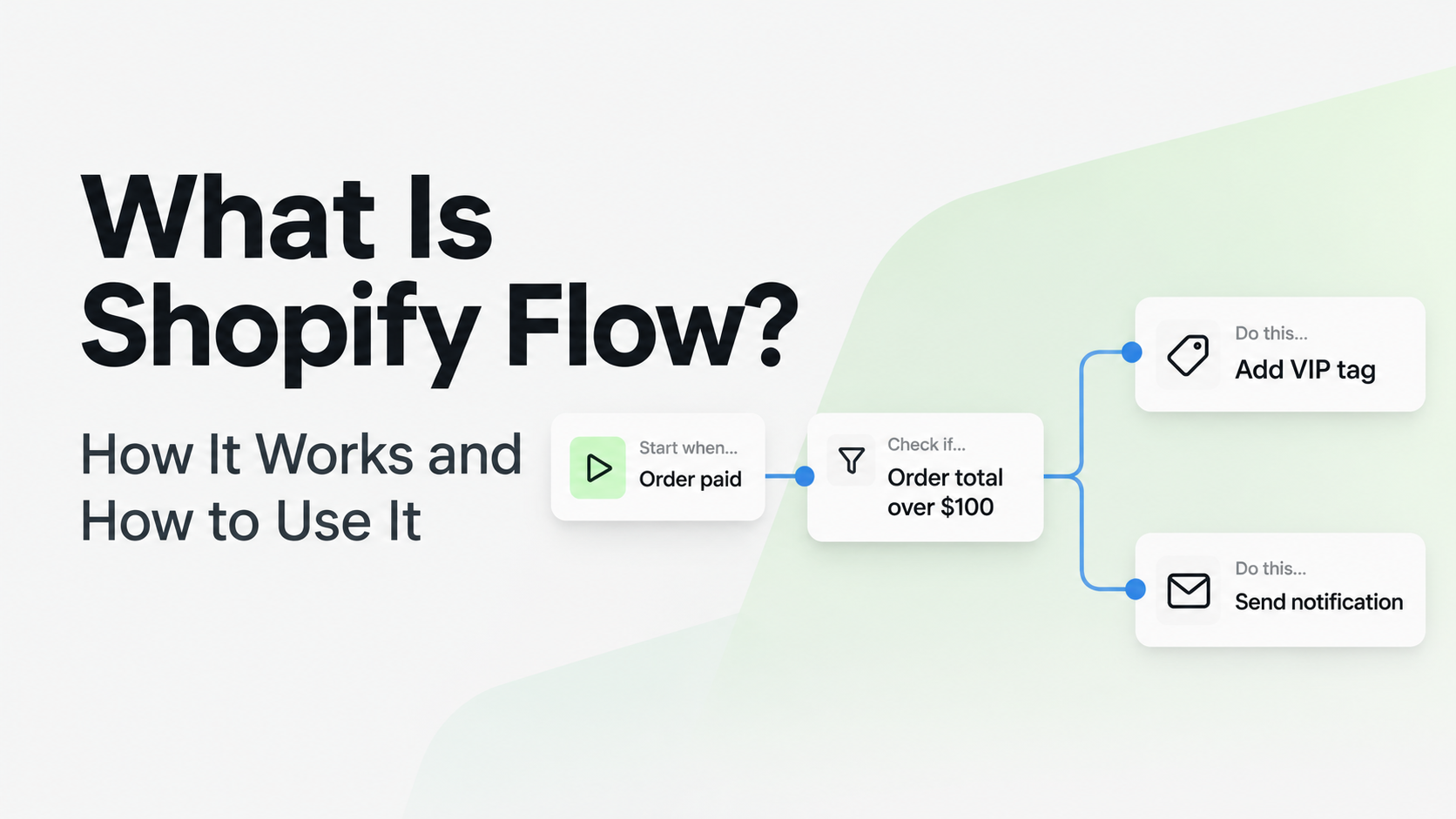
Repetitive store admin eats more time than most merchants expect. Shopify Flow exists to take that off your plate — but only when you pick the right tasks to automate.
In plain terms, Flow lets you define what should happen when a given event occurs in your store. Tag a returning buyer, pause an order for review, ping your team about late fulfillments, or push store data into another app — all of that can run on autopilot.
Flow ships with Shopify's Basic, Grow, Advanced, and Plus plans at no extra cost. Simple rules need no code, though the deeper API features do get technical.
Quick answer: what is Shopify Flow? Shopify Flow is Shopify's built-in automation tool. You assemble workflows from three building blocks — a trigger, optional conditions, and actions — to handle repeatable store tasks without writing code. You can install a template, build from scratch, or let Sidekick draft one from a sentence. The sensible approach: hand Flow the predictable admin work and keep the judgment calls for yourself.
Below we walk through how it works, the limits that matter, and how to build and test your first workflow.
Prefer to watch? This short video covers the same ground:
Post Contents
- What is Shopify Flow, exactly?
- Which Shopify plans include Flow?
- Other Shopify Flow limits
- How Shopify Flow works: triggers, conditions, actions
- What you can automate with Shopify Flow
- Before you start: Flow quirks worth knowing
- Building your first Shopify Flow workflow
- Connecting Flow to other apps
- Where Flow shines (and where it doesn't)
- Frequently asked questions
- Wrapping up
What is Shopify Flow, exactly?
Shopify Flow is Shopify's native automation app. Think of it as a no-code way to write if/then rules against your own store data.
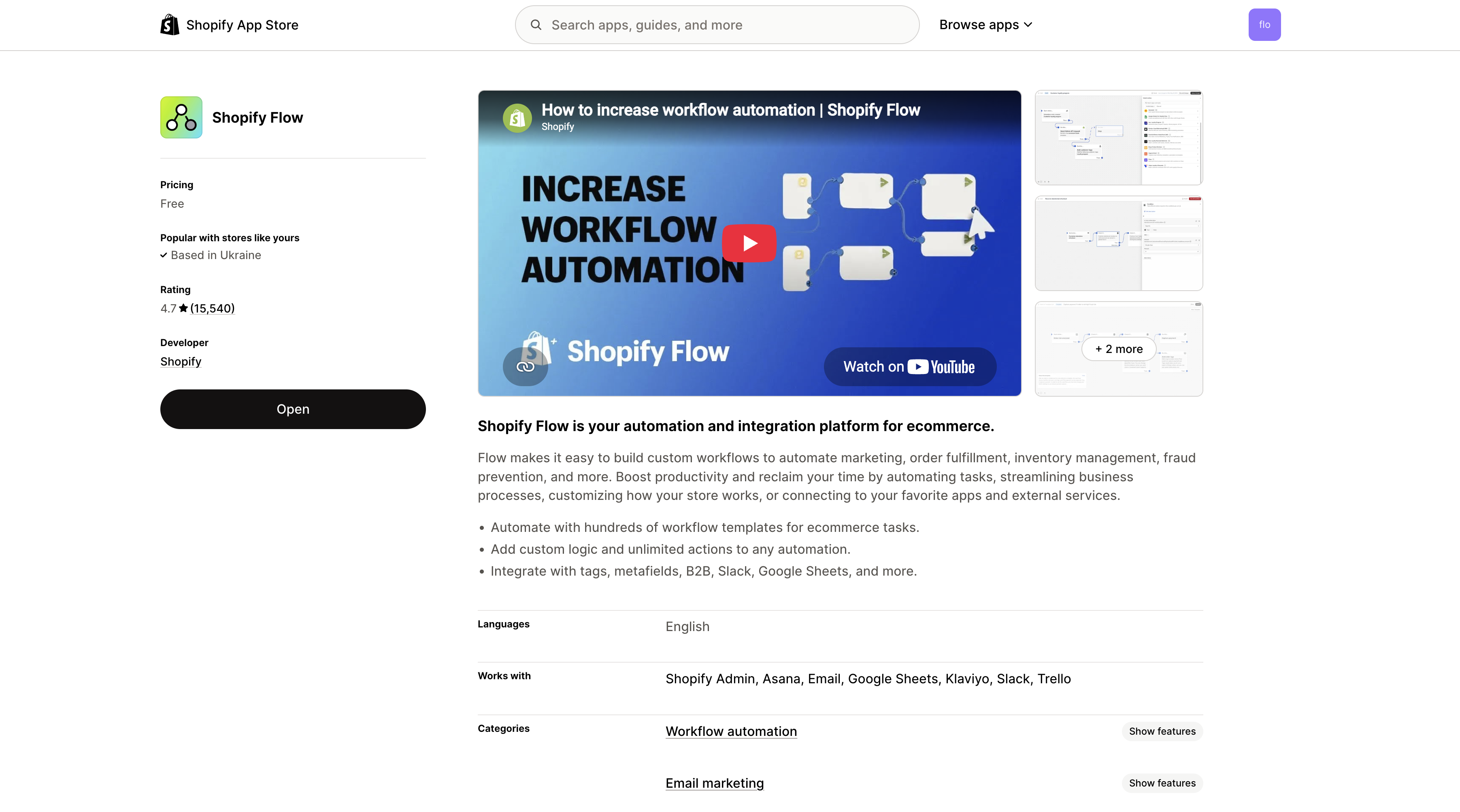
Shopify ships ready-made templates for common jobs — for instance, a daily digest of unfulfilled orders older than two days, or a check that flags when a buyer places a second order within 24 hours and holds the fulfillment so you can review or combine shipments.
Flow pays off when it removes a step that currently relies on someone remembering to do it. You're not automating the entire business — just the predictable, repeatable pieces.
If you'd rather have someone design and test these automations for you, our Shopify Flow automation setup service covers everything from simple triggers to complex, API-driven workflows.
Which Shopify plans include Flow?
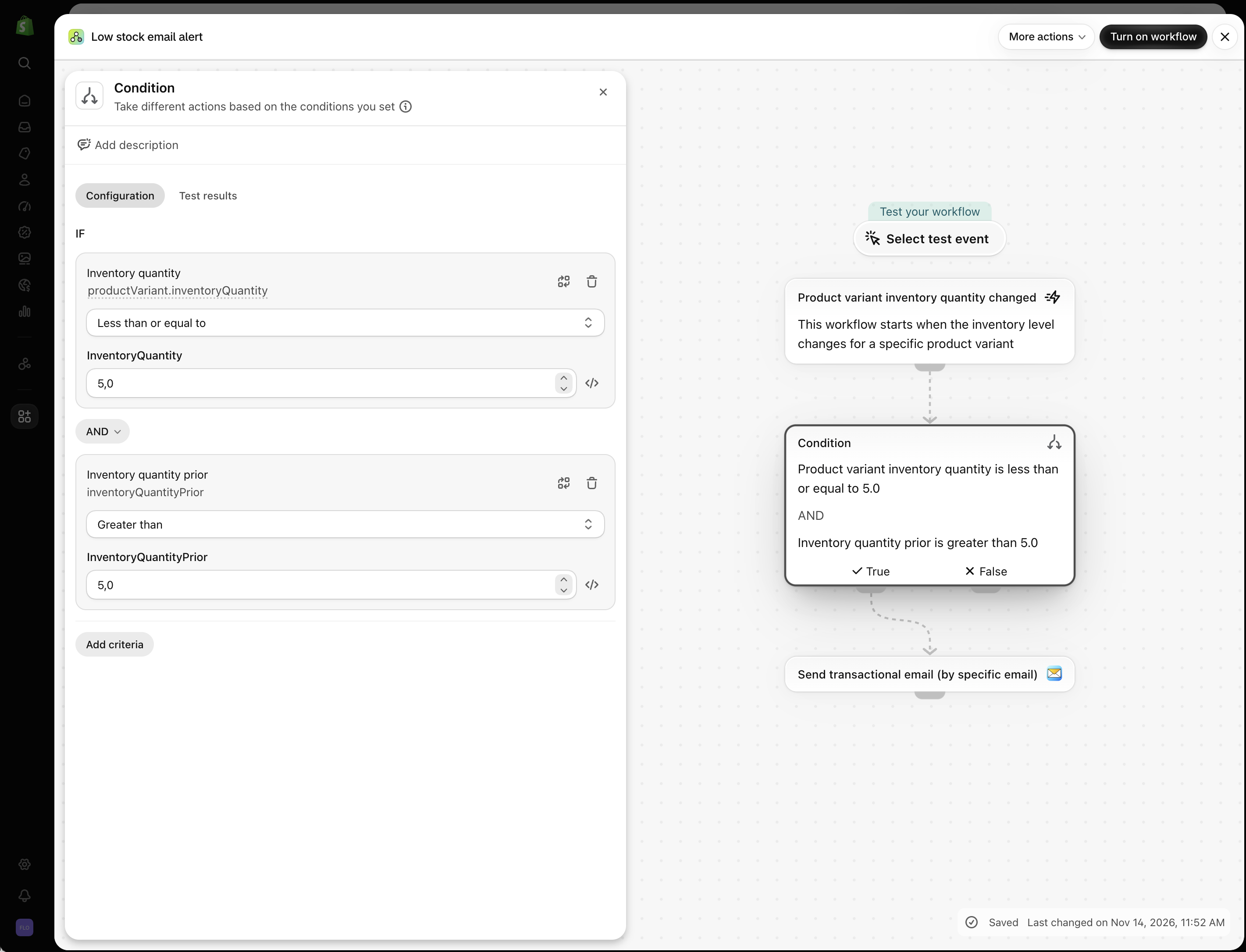
Flow is available on Shopify's Basic, Grow, Advanced, and Plus plans. The app is free — there is no separate subscription for Flow on any of those plans.
Most capabilities are identical across plans, but a few advanced ones are gated:
- The Send HTTP Request action is available on Grow, Advanced, and Plus — not on Basic. That's a real constraint if you want Flow to talk to external services or APIs, because Send HTTP Request is the main way to push data out of Shopify without a dedicated connector.
- Custom app Flow extensions (building your own triggers and actions into a custom Shopify app) are limited to Shopify Plus stores, per Shopify's developer documentation. That's relevant when you're building a bespoke integration for a client — and one reason some merchants need a custom app rather than an off-the-shelf connector. (If that's you, our custom Shopify app development service covers it)
- Usage limits scale with your plan's API limits.
Supported connectors — including WorkflowMail, which sends transactional emails directly from a Flow workflow — work across the eligible plans, so you can build useful automations without Shopify Plus. But if your automation depends on calling an outside API, plan on Grow or higher.
Other Shopify Flow limits
There are also technical limits that apply regardless of subscription tier:
| Limit | Restriction |
|---|---|
| Maximum workflows per store | 1,000 (active and inactive combined) |
| Maximum Wait steps per workflow | 40 |
| Maximum cumulative waiting time | 90 days |
| Configuration field value | Less than 50 KB |
| Workflow execution | 36 hours per execution section |
These limits are documented in Shopify's Flow troubleshooting guide.
How Shopify Flow works: triggers, conditions, actions
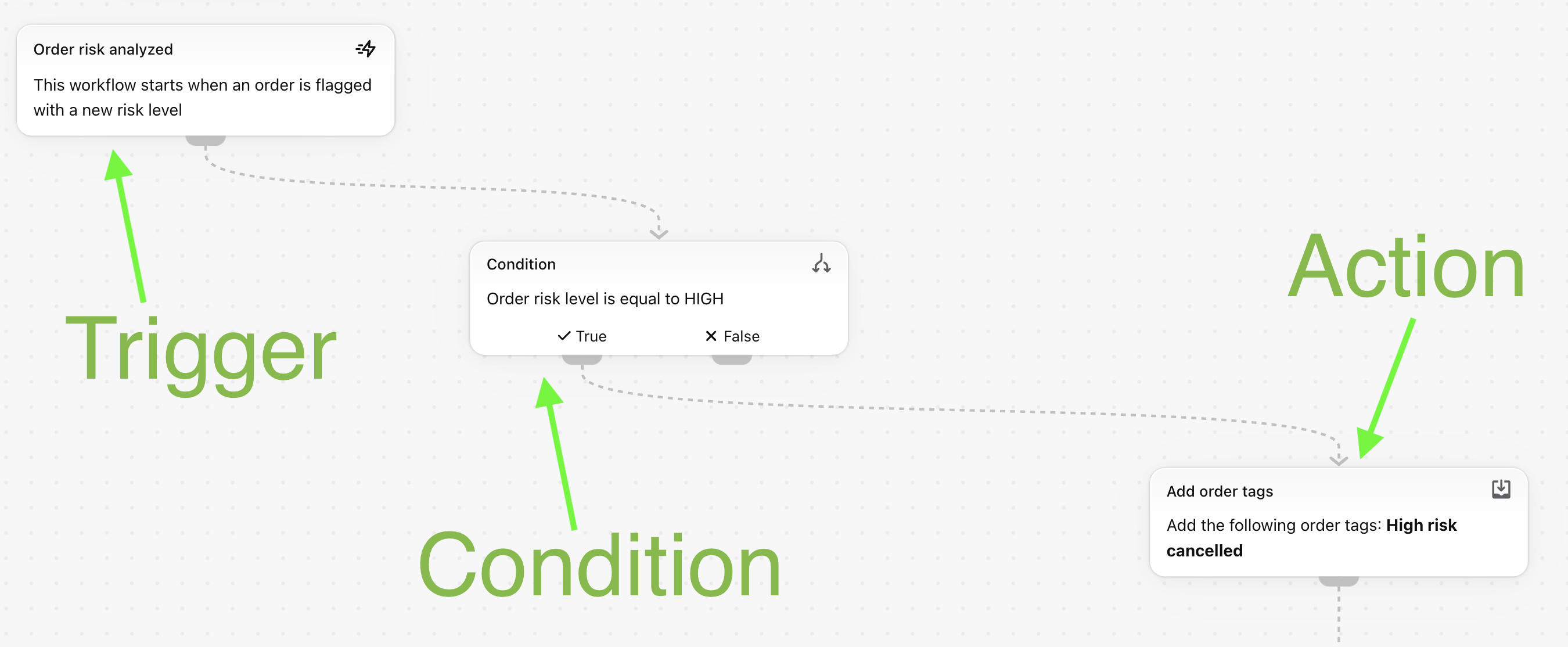
Every workflow begins with a single trigger. From there you can layer on conditions and actions:
- Trigger. The event that kicks the workflow off.
- Condition. A rule that chooses which branch runs.
- Action. What Flow does once the trigger fires and the conditions pass.
Imagine you want a human to eyeball unusually large orders. You could look for orders above a quantity threshold, add a 'for review' tag, and email a staff member:
1. Trigger
The trigger starts everything. For the scenario above you'd use 'Order created' so Flow evaluates the order the moment Shopify creates it.
2. Condition
The condition narrows the scope. You might check whether the order holds more than five items, or whether a single line item has more than ten units. Set the threshold to whatever counts as unusual for your store.
3. Action
The action is the payoff. Here Flow would add the 'for review' tag and send an internal email. Orders that fail the condition follow the other branch and get no action.
What you can automate with Shopify Flow
Flow fits anywhere a repeatable store event should lead to a predictable next step. Shopify's workflow examples cover areas like:
- Order and fulfillment checks. Hold high-risk fulfillments, flag outsized orders, or pause repeat orders placed within 24 hours.
- Customer organization. Tag buyers by history, spend, or any store data you'll want later.
- Inventory and product tasks. Send low-stock summaries, surface out-of-stock products, or update tags and metafields.
- Reporting and notifications. Daily summary emails, Slack messages, or rows appended to Google Sheets.
- Connected app workflows. Hand data to a supported app when its connector exposes the trigger or action you need.
The best first automation is usually a dull task you already repeat. Clear rule, predictable outcome — that's the sweet spot, far more than a decision that still needs human judgment. For more ideas, see our Shopify Flow AI prompt examples for email chains.
Before you start: Flow quirks worth knowing
- No GraphQL needed for basics. Templates and common triggers, conditions, and actions all work without code. GraphQL field names matter once you build advanced workflows or touch API data.
- Runs ASAP, not instantly. There can be a short gap between a trigger firing and its actions completing, depending on Shopify's queue. If you need a deliberate pause — waiting for a fulfillment to update, or spacing out follow-up emails — Flow has a built-in Wait action that can pause a workflow for up to 90 days.
- Old data isn't replayed automatically. But eligible workflows can be run manually against existing orders, draft orders, customers, and products when the trigger supports it.
- Orders and draft orders are separate. A trigger or action for one doesn't carry over to the other.
- Tag-heavy records hit a limit. Conditions involving tags may stop working once a record has more than 250 tags.
- Some order data lands later. Risk info, fulfillments, and UTM data can populate asynchronously. If your workflow depends on one of those, pick the right trigger and test before activating.
- Run history is short-lived. Shopify keeps completed run logs for 14 days, so don't treat Flow as a permanent audit log.
The practical rule: start small, verify the logic, then automate something more important once you trust it.
Building your first Shopify Flow workflow
Three routes exist: templates, manual building, and Sidekick generation. For a first workflow, start with a template so you can see a working trigger, condition, and action before changing anything.
Step 1: Install the Shopify Flow app
In your Shopify admin, open Apps and search for 'Flow'.
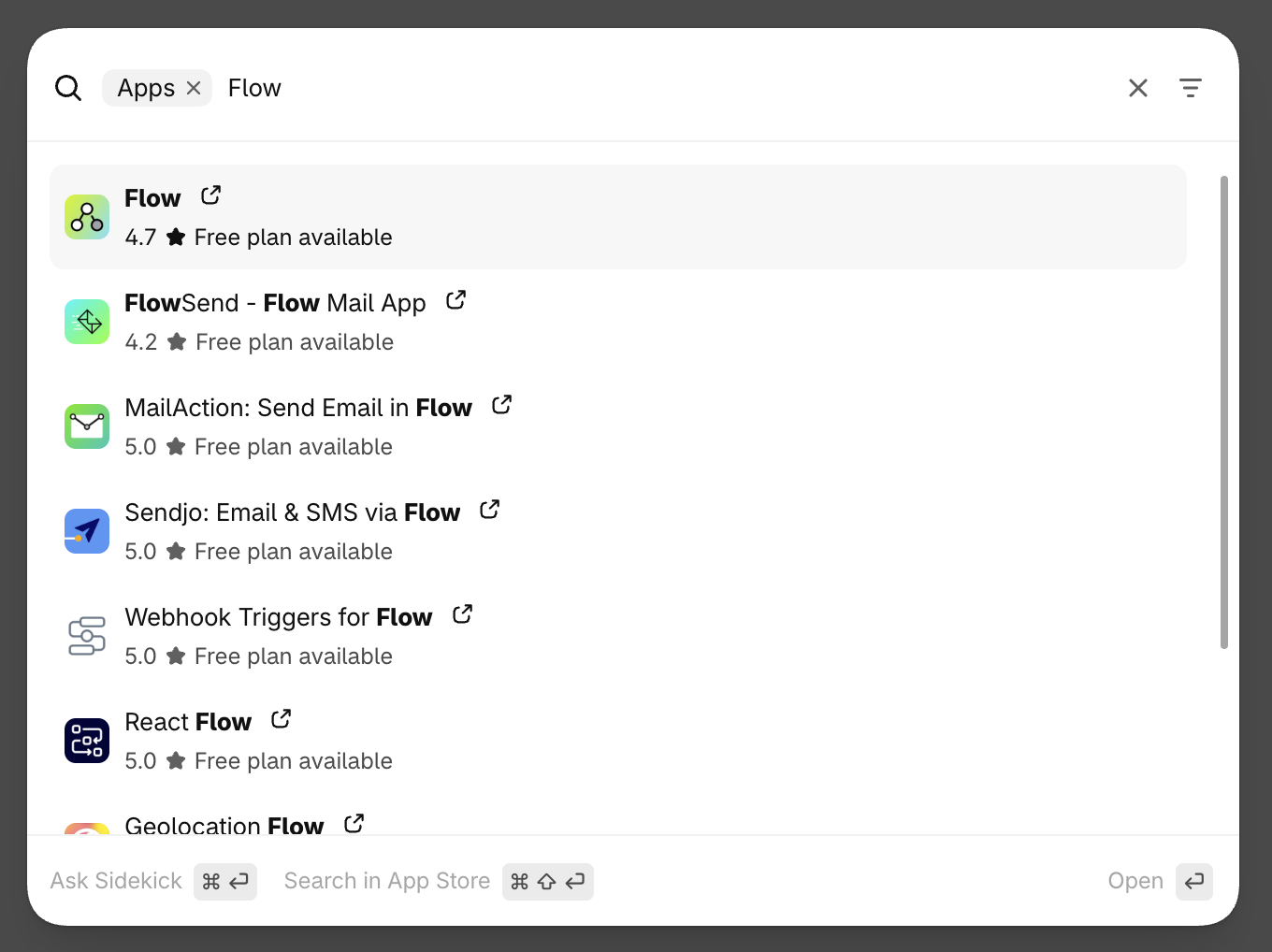
Open the Flow listing and install it. After that, Flow lives in your admin.
Step 2: Choose how you want to build the workflow
Pick the route that matches how much control you want:
- Use a template. Shopify maintains a large library covering orders, inventory, customers, risk, marketing, and fulfillment.
- Build it manually. Start with a trigger, then add conditions and actions.
- Use Sidekick. On desktop, describe the automation in plain English and let Sidekick generate a workflow to review.
Sidekick-generated workflows are inactive by default, which gives you time to review and test the generated logic before you turn it on. For a deeper walkthrough of building Flow workflows with Sidekick and sending emails with WorkflowMail, see our guide: Creating Shopify Flow Workflows with Sidekick (and Sending Emails with WorkflowMail).
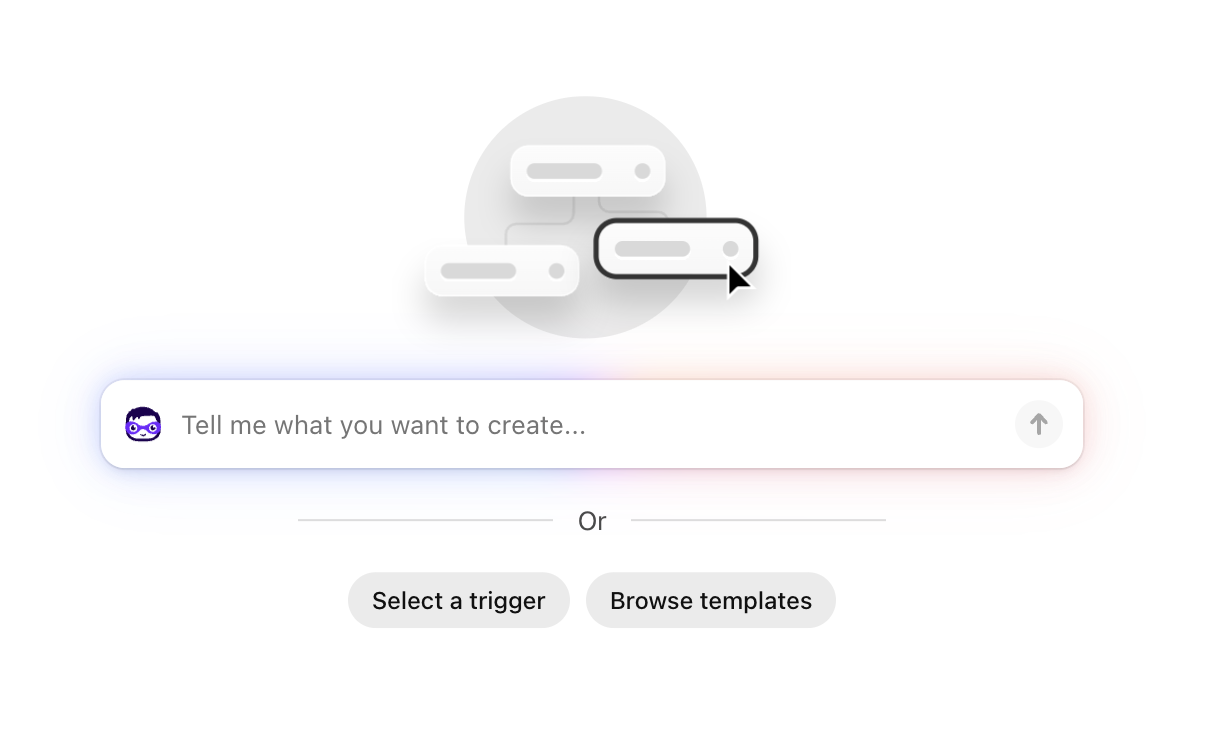
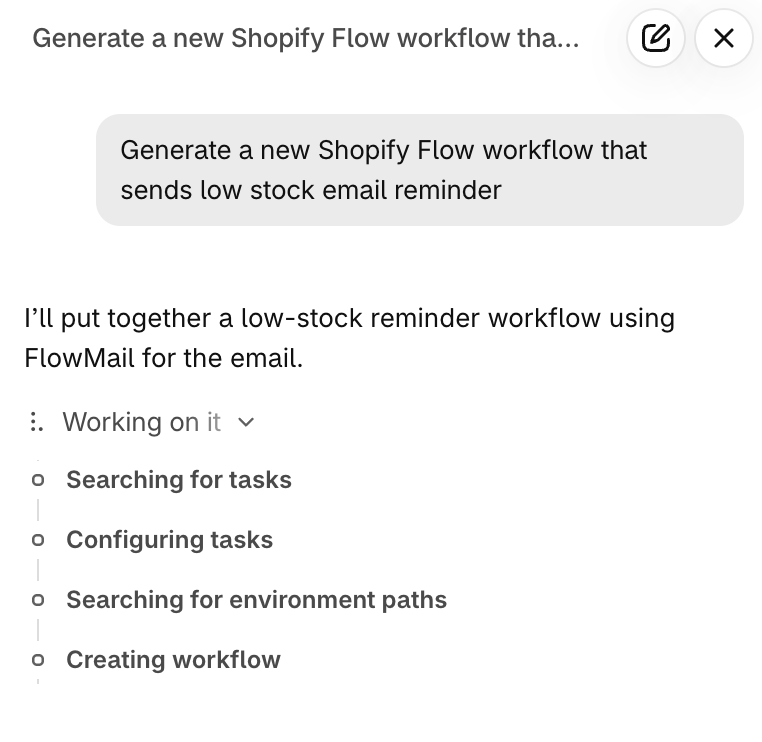
Step 3: Create a workflow
Let's walk through a real template. Say you gave an influencer a discount code 'WorkflowMail10' and want an email whenever someone uses it. Shopify offers a template called 'Get notified when a specific discount code is used.'
Search for 'Discount' in the template library:
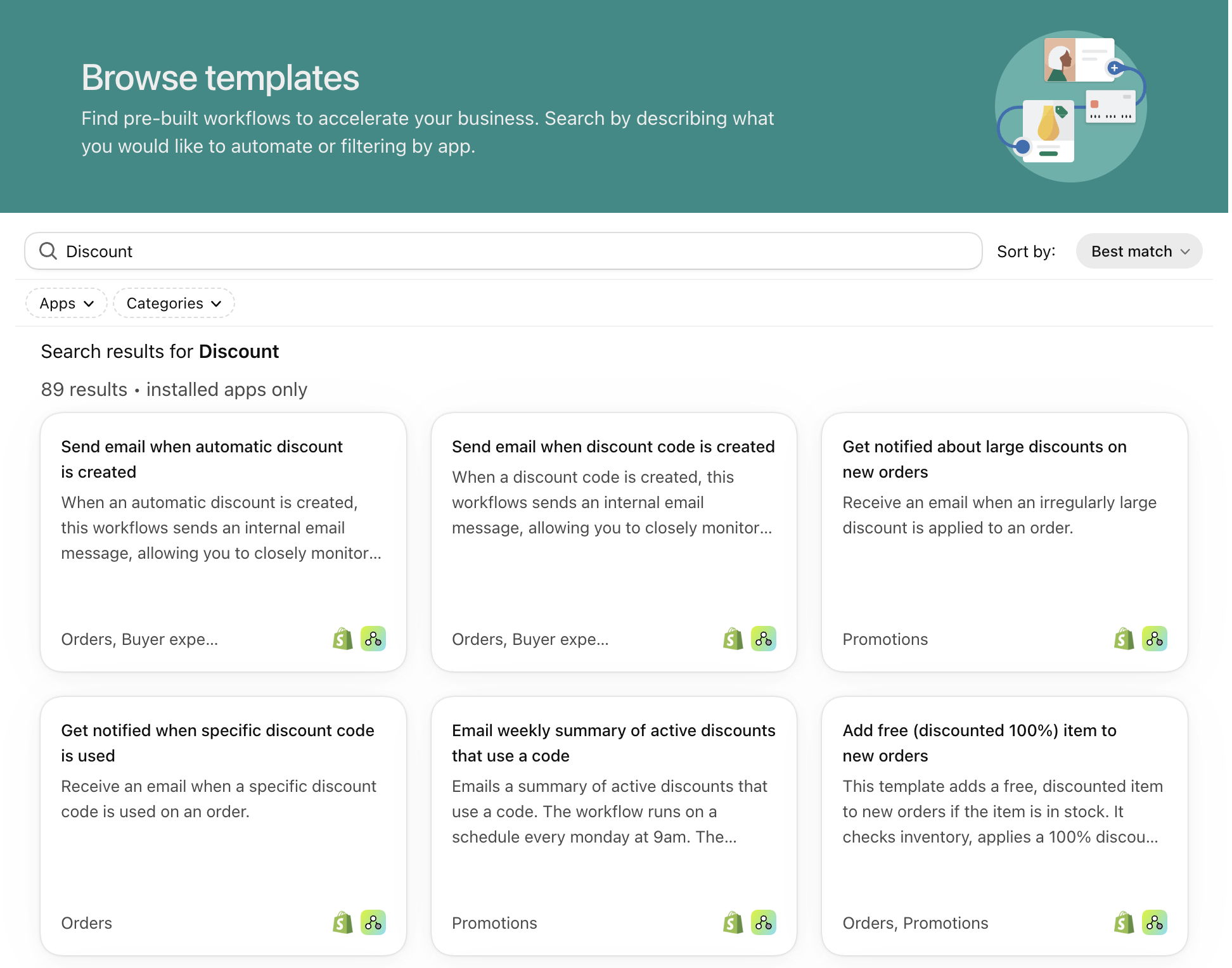
Open it and review the three parts:
- Trigger. The workflow starts when an order is created.
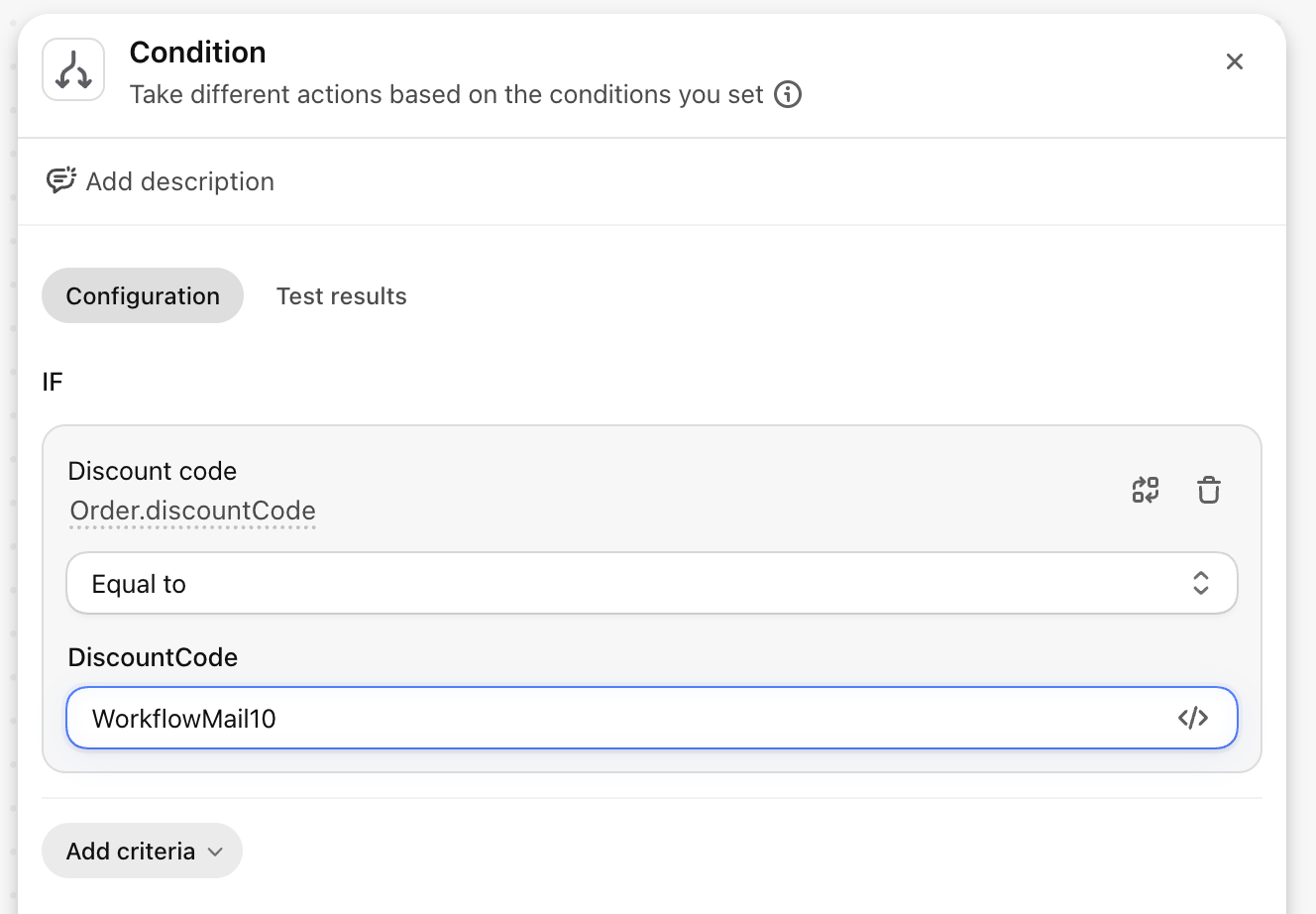
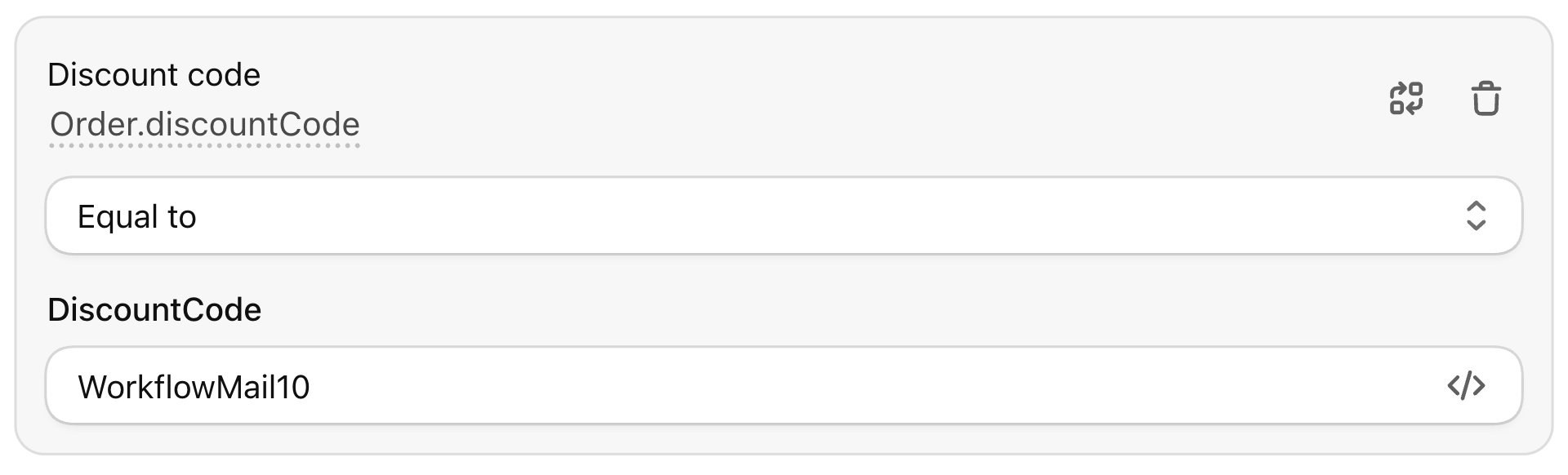
- Condition. Flow checks whether the order used your specified discount code.
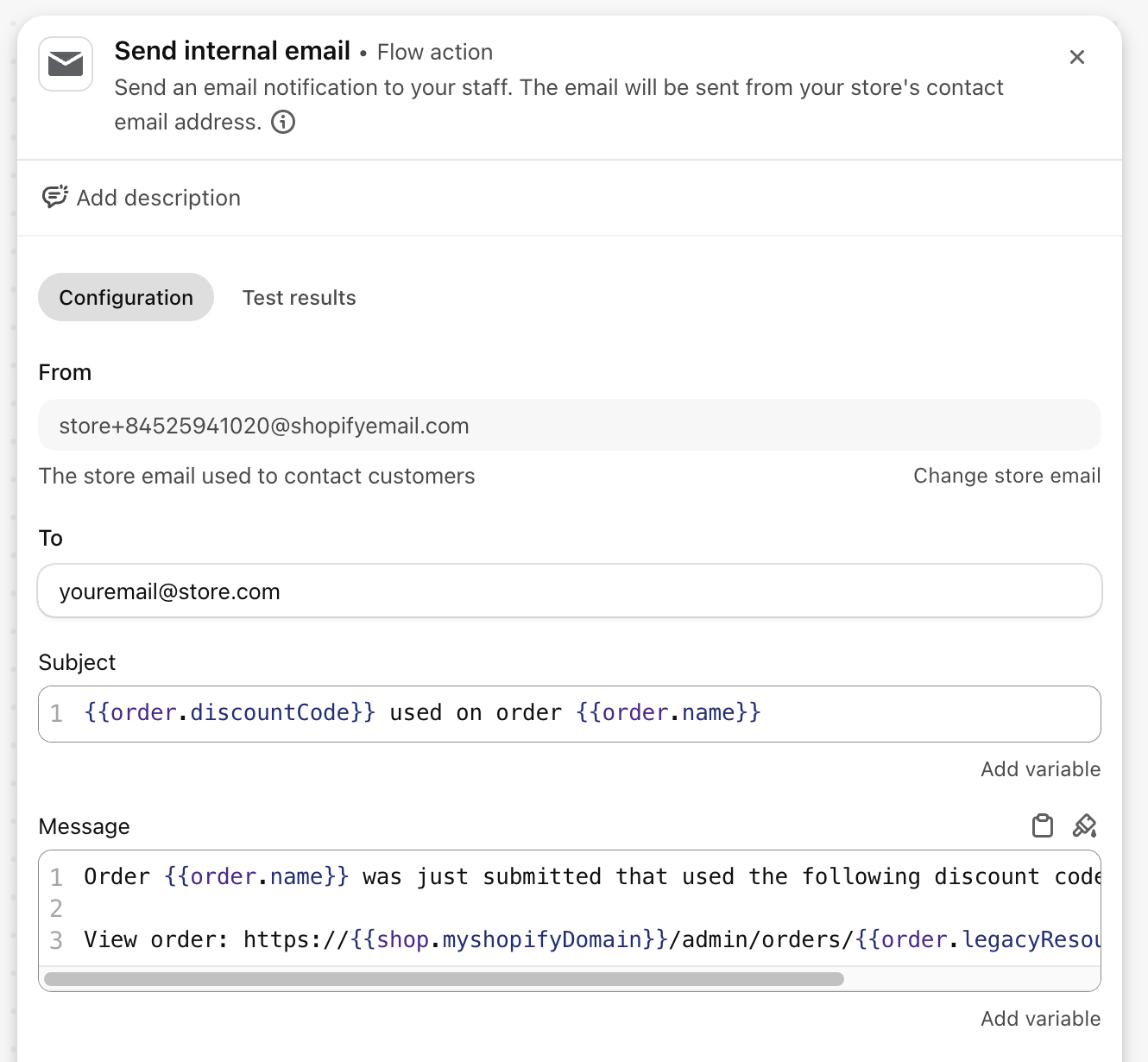
- Action. Flow sends the notification you configured.
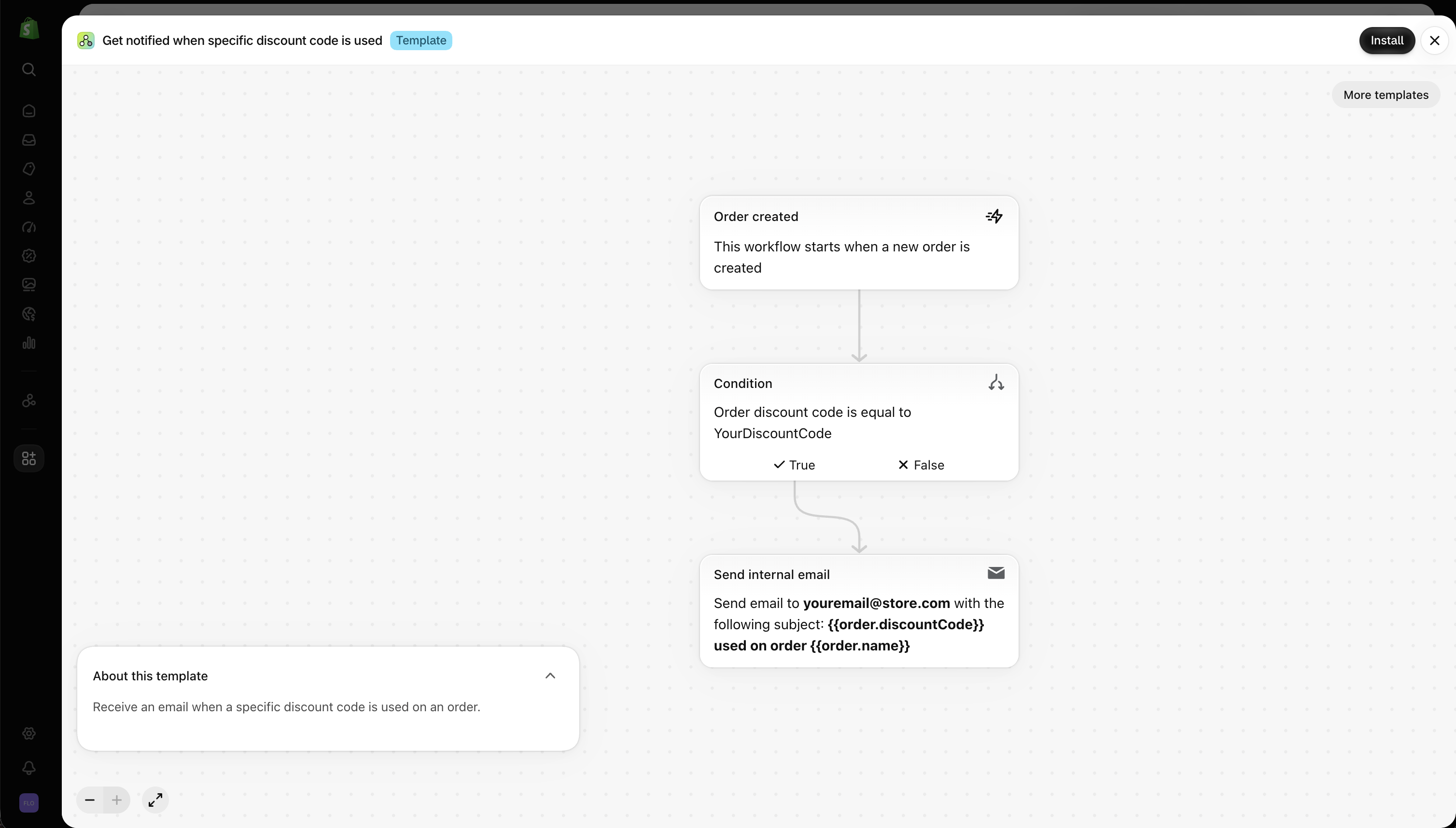
Install the template, then replace the placeholder discount code with 'WorkflowMail10':
Next, check the email action and confirm the message goes to the right person:
You can add more conditions when they genuinely help. For example, limit the notification to orders above $70 instead of emailing on every use of the code:
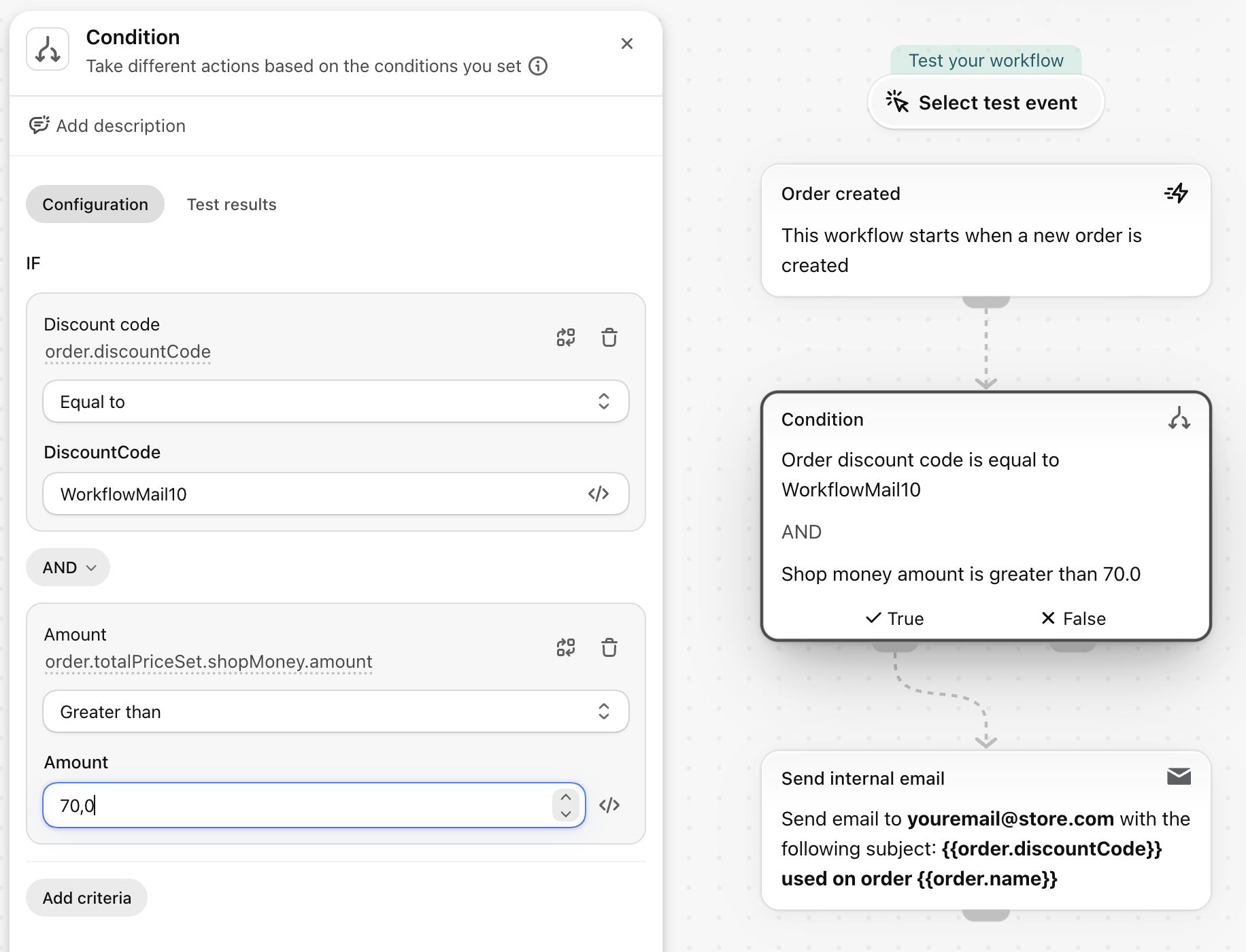
Don't add branches just because Flow allows it. Every extra condition is logic that can be misconfigured later.
Step 4: Test the workflow before turning it on
One of Flow's better recent additions: you can test a workflow before activating it. Use a recorded store event, a simulated event built from real store data, or Sidekick-generated test events.
The test shows which path the event follows, but it does not execute live actions like changing an order or sending a notification. For the 'WorkflowMail10' example, test both sides: one order that uses the code and one that doesn't. That tells you far more than testing only the path you expect to pass.
Step 5: Turn it on and check the first runs
Once behavior matches expectations, turn the workflow on. Then use Flow's Recent runs section to see what happened and which path each run took. Shopify keeps completed run logs for 14 days, so investigate errors while the details are still there.

If you'd rather skip the trial and error, our automation setup service designs, tests, and deploys these workflows for you.
Connecting Flow to other apps
Connectors let a workflow use supported third-party services. A connector can supply a trigger that feeds data into Flow, or an action that lets Flow instruct another service. Flow can add a row to Google Sheets or send a Slack message, for example. Developers can also build Flow triggers and actions into their own Shopify apps.
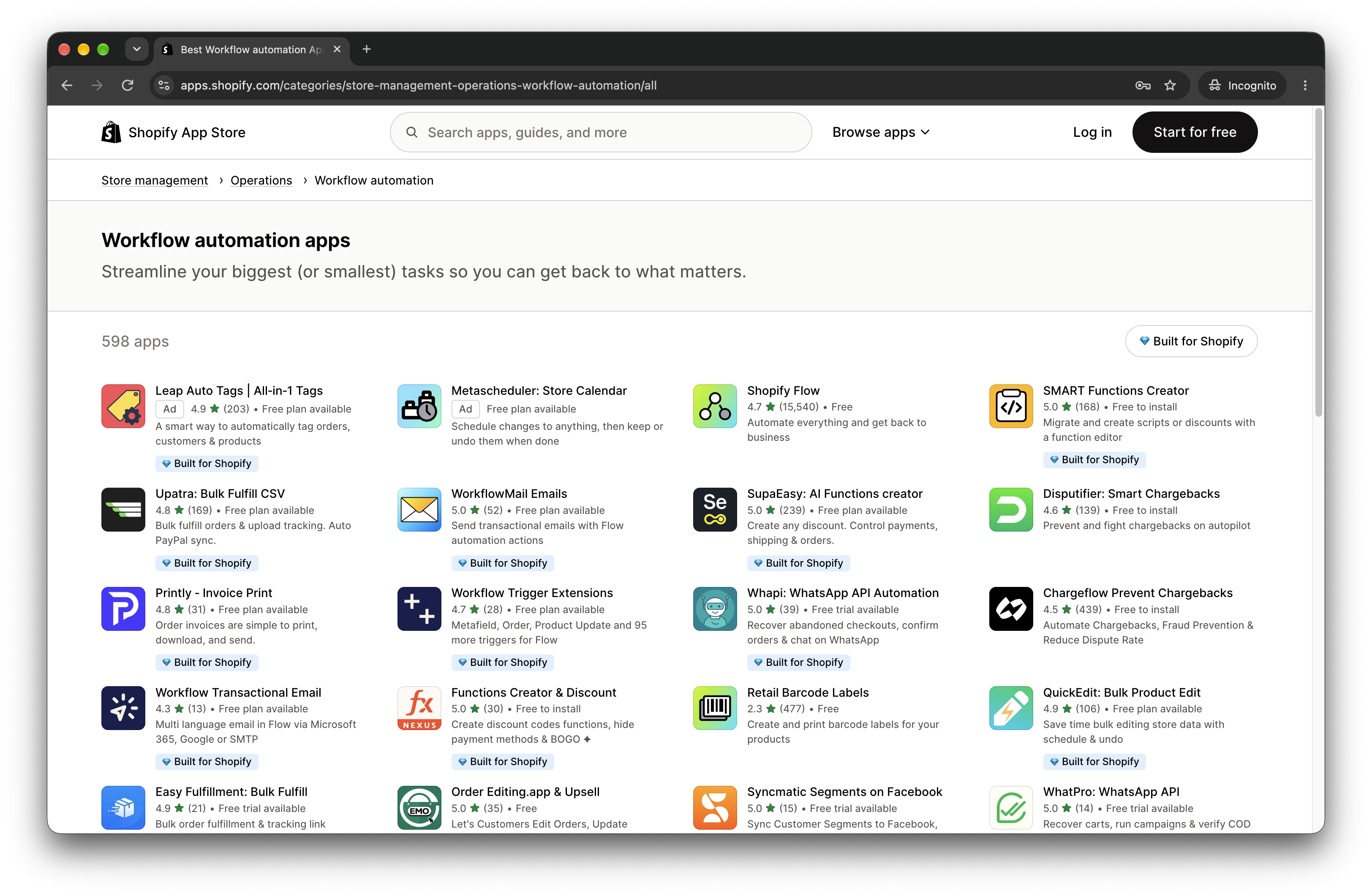
One caveat: the app must have a built-in Flow connector. Installing an arbitrary Shopify app does not automatically expose it in Flow.
Which apps does Shopify Flow work with?
The list changes over time, so verify before building a workflow around a specific app. At our latest check, Shopify's connectors included:
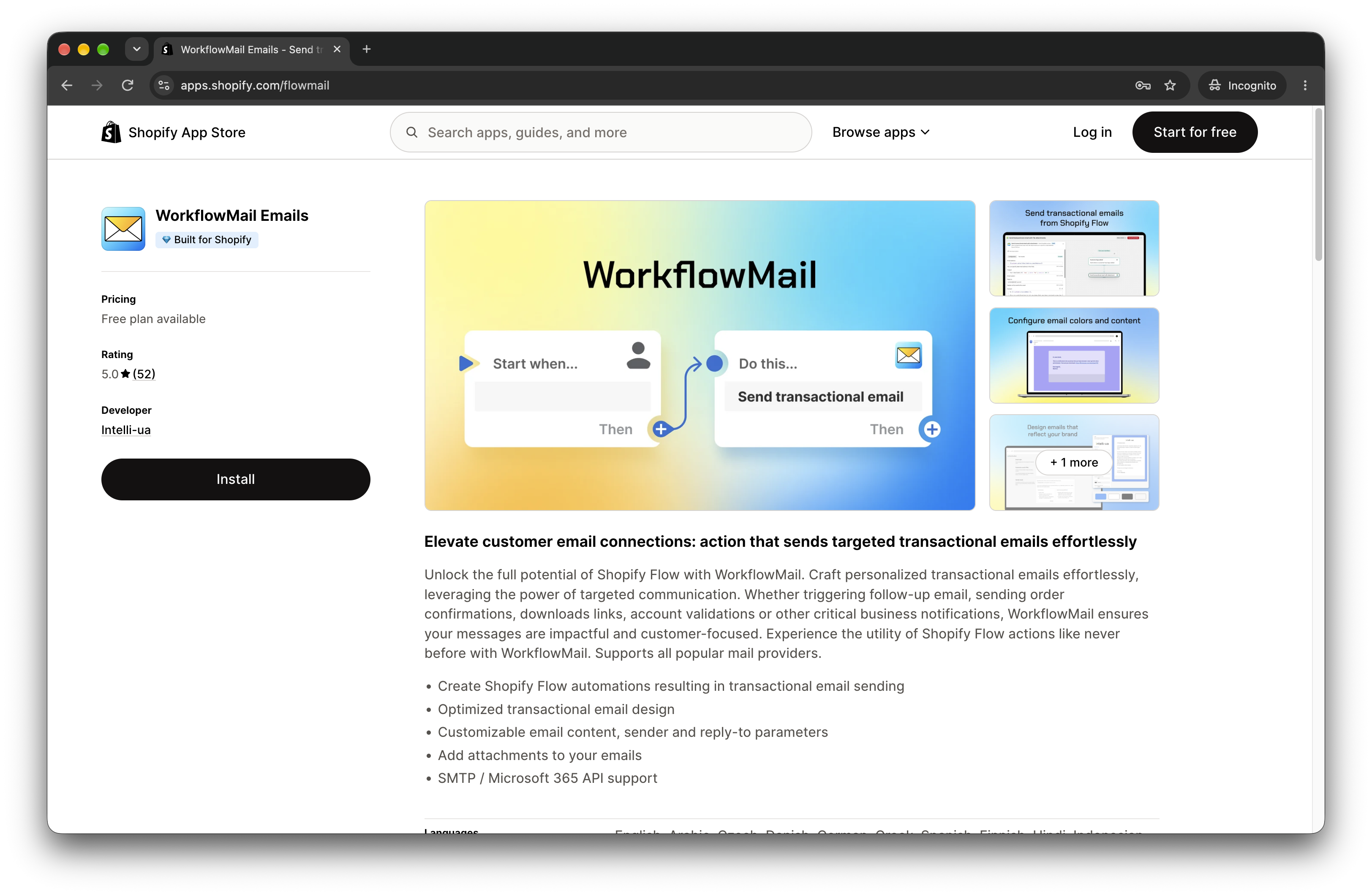
For the current list and the exact triggers or actions each connector supports, check the Workflow automation apps page.
Shopify Flow example using a third-party app
Here's a real automation from our WorkflowMail template library: "Email customers after a negative review." It follows up with unhappy reviewers to offer help.
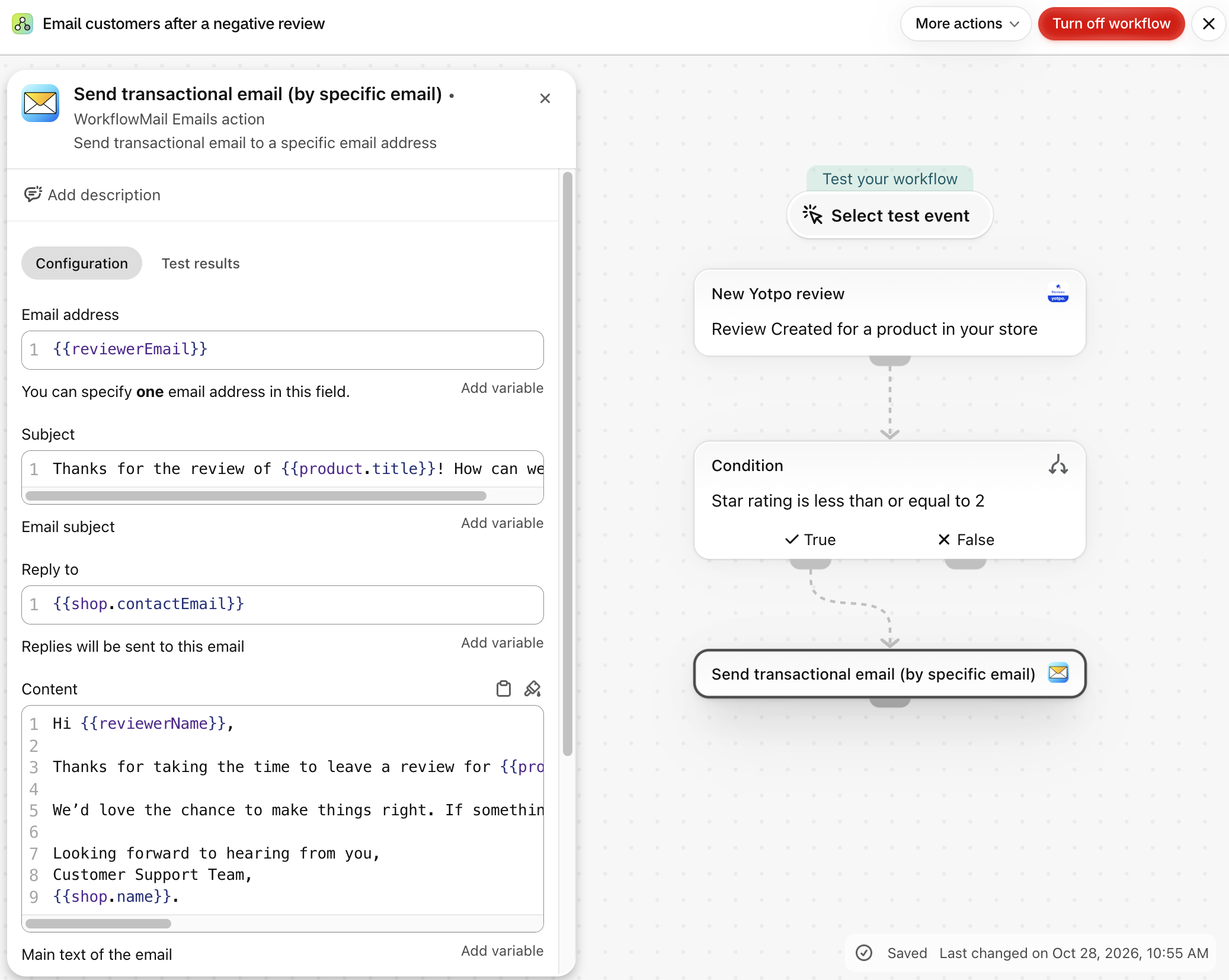
When a review event arrives, the workflow checks whether the rating is 2 stars or lower. If it is, it immediately sends an email to the reviewer, with no wait step. Higher-rated reviews don't receive this email.
The email uses the reviewer's name and product name, thanks them for their feedback, apologizes for the experience, and invites them to reply for support. Its subject is "Thanks for the review of {{product.title}}! How can we help?" Replies go to your store's contact email, and it's signed by your customer support team.
It offers help rather than promising a refund or replacement. The review app needs to supply the reviewer's email address for the message to reach them.
The workflow can follow this logic:
- Use the review app's "review created" trigger as the trigger.
- Add a condition that checks whether the rating is 2 stars or lower.
- On the matching path, add the WorkflowMail 'Send transactional email' action.
- Complete the subject, body, and recipient fields using review and product variables for personalization.
- Test the Flow logic before activation, then submit a test review to confirm rendering.
Shopify handles the store event and review data, then the connector passes the right information to the outside service. If you want a head start, our library of WorkflowMail-powered Flow templates includes 38 ready-to-use workflows you can install in one click.
Where Flow shines (and where it doesn't)
If you already run on Shopify, Flow is usually the first automation tool worth checking for repeatable Shopify tasks. You're already paying for the platform, and Flow adds no extra subscription.
Its strengths:
- Built around Shopify data. Automate orders, customers, and products without moving data elsewhere first. Flow also covers inventory, fulfillment, tags, and metafields.
- No code to start. Templates handle many common jobs, and Sidekick can draft a first workflow from a plain-English description.
- Safer testing than before. You can verify the path a workflow takes before activation, without letting the test touch live store data.
- Room to grow. Schedules, loops, and data lookups are available when you need them, plus connectors, HTTP requests, and Admin API actions.
Where Flow falls short:
- Shopify-only. If most of the workflow lives outside Shopify, a broader automation platform may fit better.
- Plan-gated advanced actions. Send HTTP Request isn't available on Basic, and custom partner-app tasks are Plus-only.
- Complex setups get technical. GraphQL fields, Liquid variables, API calls, and asynchronous order data add layers of complexity.
- Connector coverage isn't universal. A third-party app needs a supported connector for Flow-specific triggers or actions.
For a small or medium Shopify store that's a fair trade-off. Start with the native automation you already have, and add another tool only when Flow can't cover the job.
What merchants say about Flow
At our latest check, Shopify Flow held a 4.7-star rating in the App Store across 15,540 reviews. Strong overall, but recent feedback is mixed.
Merchants frequently praise Flow for quick wins like tagging and metafields, plus notifications and other repetitive tasks. Critical reviews tend to mention occasional glitches, template friction, and limits when a developer wants finer control.
That split matches our take: Flow is excellent for Shopify-native automation, but it won't replace a custom app or a broader automation stack once workflows get highly specialized. If you hit that ceiling, our automation setup service can take over with code, APIs, and purpose-built tooling.
Frequently asked questions
How much does Shopify Flow cost?
Shopify Flow is a free app on Basic, Grow, Advanced, and Plus. Advanced features are plan-dependent: Send HTTP Request is available on Grow, Advanced, and Plus, while custom partner-app tasks are Plus-only.
How do I create a workflow in Shopify?
Open Apps in your Shopify admin, open Flow, and click 'Create workflow.' Start from a template or build manually. On desktop you can also use Sidekick. Review the trigger, conditions, and actions, test, then turn it on.
How do I test Shopify Flow?
You can test before activation using a recorded event, a simulated event based on real store data, or Sidekick-generated test events. The test shows the logic path without executing actions that would change live data.
Wrapping up
Shopify Flow is worth learning once repetitive Shopify admin starts piling up. Start with one frequent, boring task — tagging an order type or tracking a campaign code. Flagging unusual orders or sending a fulfillment summary are good candidates too.
Build it, test both the passing and failing paths, then watch the first few runs. If Flow handles the job, you've removed a recurring task without adding another subscription.
If it can't reach the app or system you need, that's the signal to look at a broader automation tool, a connector like WorkflowMail for email delivery, or a custom automation setup.
For more help, Shopify has extensive Flow documentation, and the Shopify Community is useful for workflow-specific problems. You can also browse our guides on building Flow workflows with Sidekick and WorkflowMail-powered Flow templates.
Free plan available · 500 free lifetime Flow actions to try